Where To Find Screenshots On Steam

Let's face it, we've all been there - you're in the middle of a heated gaming session, and you pull off an epic move that would put a pro gamer to shame. You want to capture t...
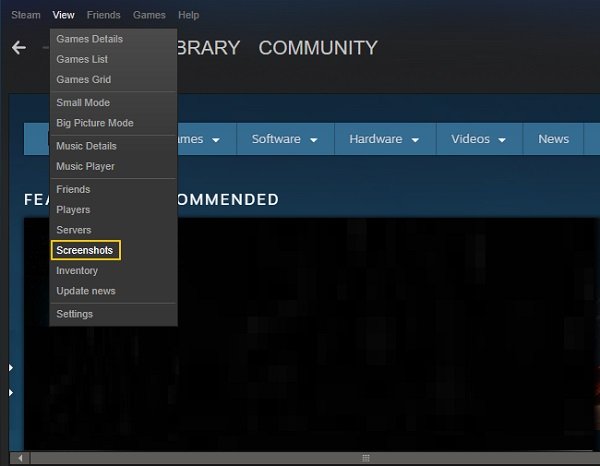
Let's face it, we've all been there - you're in the middle of a heated gaming session, and you pull off an epic move that would put a pro gamer to shame. You want to capture the moment and share it with your friends, but where do you even find those screenshots on Steam? It's like trying to find your keys in a messy room - you know they're there somewhere, but good luck finding them!
Getting Started
First things first, make sure you're running the latest version of Steam - you don't want to be stuck in the dark ages of gaming. Once you've got that covered, it's time to start looking for those pesky screenshots. The easiest way to find them is by pressing the screenshot button (usually F12, but you can customize it to your heart's content).
Where the Magic Happens
So, where do these screenshots end up? Well, it's not like they're being beamed into space or anything - they're actually stored on your local machine. You can find them in the Steam screenshots folder, which is usually located in the Steam directory (C:\Program Files\Steam by default). Just navigate to that folder, and you'll find all your screenshots waiting for you like presents under the Christmas tree!
Must Read
But wait, there's more! Steam also allows you to upload your screenshots to the cloud, so you can access them from anywhere. This is super handy if you're playing on a different machine or just want to share your gaming moments with friends. To do this, simply go to the Steam community section, click on screenshots, and voilà - your screenshots will be magically uploaded to the cloud!
Tips and Tricks
Now that you know where to find your screenshots, let's talk about some pro tips to make the most of them. For starters, you can customize the screenshot folder to your liking - just go to the Steam settings and choose a new location. You can also add captions to your screenshots, which is perfect for when you want to tell a story or add some context to your gaming moments.
And if you're feeling extra adventurous, you can even create a screenshot showcase on your Steam profile. This is a great way to show off your gaming skills and share your favorite moments with the world. Just go to your Steam profile, click on edit profile, and then add a screenshot showcase - easy peasy, lemon squeezy!
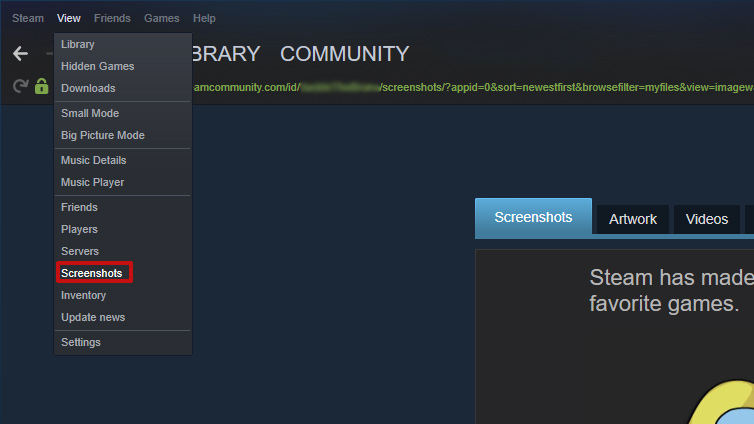 Steam screenshot folder: where to find it in Windows, macOS and Linux
Conclusion
In conclusion, finding screenshots on Steam is a breeze - it's like finding your favorite snack in the kitchen (you know, the one you just can't get enough of!). With these simple steps and tips, you'll be well on your way to capturing and sharing your gaming moments like a pro. So go ahead, get out there and start snapping those screenshots - your friends (and your gaming ego) will thank you!
As a final note, don't forget to check out the Steam community for more tips and tricks on how to get the most out of your Steam experience. And if you're feeling generous, share your favorite gaming moments with the world - after all, sharing is caring! With that said, happy gaming, and we'll catch you in the next one!
Oh, and one more thing - if you're having trouble finding your screenshots, don't worry, it's not like you've lost your mind (although, let's be real, it can feel that way sometimes!). Just take a deep breath, follow these simple steps, and you'll be back to capturing and sharing those epic gaming moments in no time. Happy gaming, and don't forget to have fun!
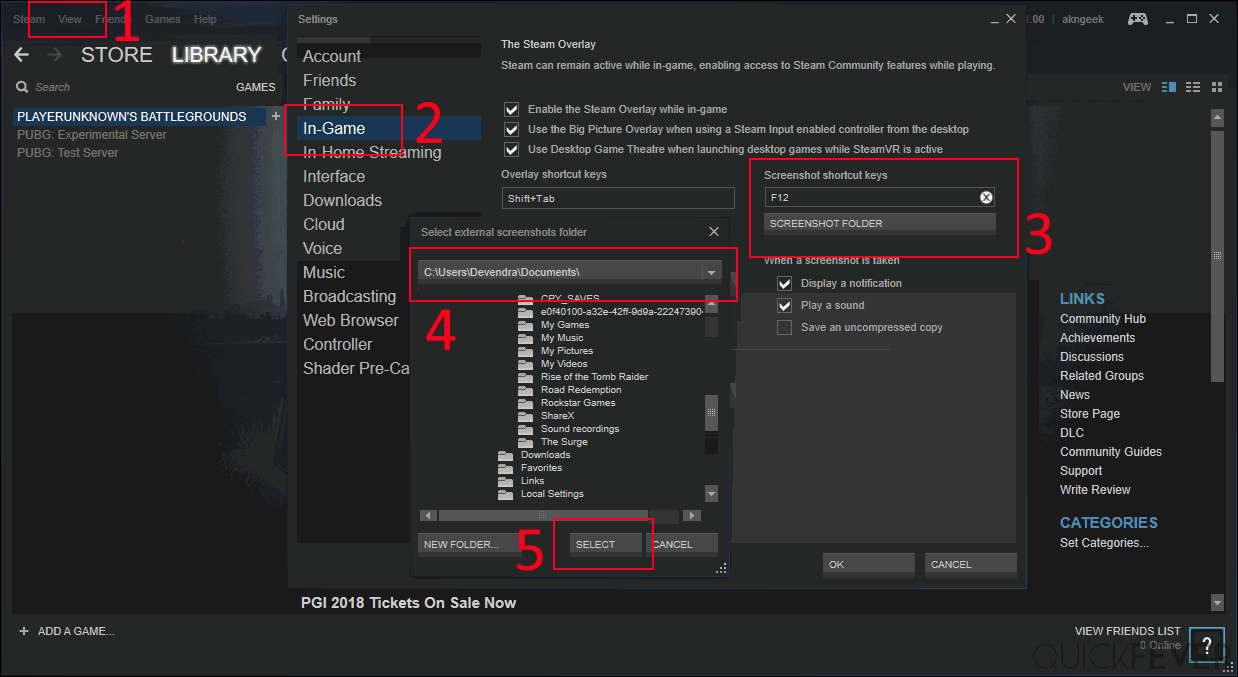 Steam Screenshots at Patricia Mahmood blog
Final Thoughts
In the world of gaming, screenshots are everything - they're like the cherry on top of your gaming sundae. So, next time you're in the middle of a heated gaming session, don't forget to capture the moment and share it with your friends. With Steam's screenshot feature, it's easier than ever to share your gaming moments with the world.
And there you have it - a comprehensive guide to finding screenshots on Steam. We hope you found this article informative and entertaining, and that you'll be well on your way to capturing and sharing your gaming moments like a pro. Happy gaming, and we'll catch you in the next one!
As a parting gift, don't forget to check out the Steam store for the latest gaming deals and discounts. You never know what gems you might find - and with Steam's screenshot feature, you can capture and share all your gaming moments with ease. So, what are you waiting for? Get out there and start gaming - and don't forget to have fun!
